对于读过我关于 Windows Azure 应用的帖子的朋友们,可能还记得我用来修复缺失绑定和其他 app.config 设置的快捷方式。我一直想深入研究并找到解决方案,但因为Azure帖子受限于我承诺的“10分钟应用”,我选择了这个难看的解决方案。最近我和MSDN团队讨论他们想做的AIF相关文章时,我提出了这个问题。他们指出他们没见过这个问题,并问我是否遵守了关于使用网络服务的白皮书。其实这不算太多,但在翻阅白皮书时,我发现了一个非常小的点子,这让我有了天大的帮助,也解决了我的问题:AIFUtil课程!这激发了我写一篇后续文章的想法,因为深夜在推特上有过一次相关的对话,我觉得我真的需要把它写到我的博客上。我接下来要解释的问题是.NET的事实,而不是AX 2012本身的问题。事实上,正如你将看到的,AX 2012 有办法修复这个问题。
在这次代码攻略中,我将使用一个免费的在线货币转换服务。你可以在 http://www.restfulwebservices.net/wcf/CurrencyService.svc?wsdl 找到WSDL。如果你读到这篇文章时这个链接已经关闭,或者你只是想尝试别的,可以去 XMethods 看看其他免费的在线网络服务。
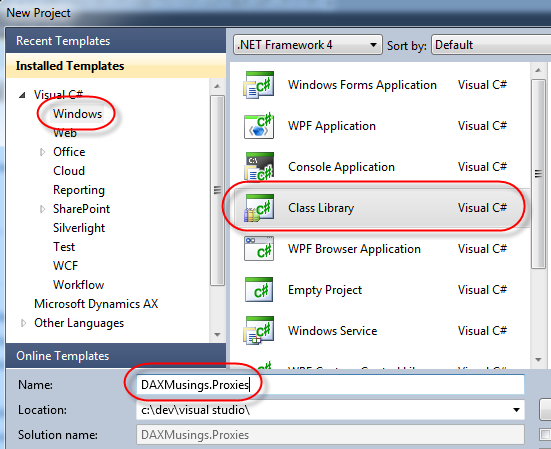
首先,我们将创建一个新的Visual Studio 2010类库项目,我将其命名为DAXMusings.Proxies
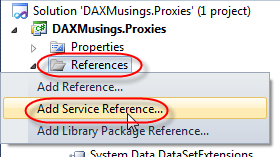
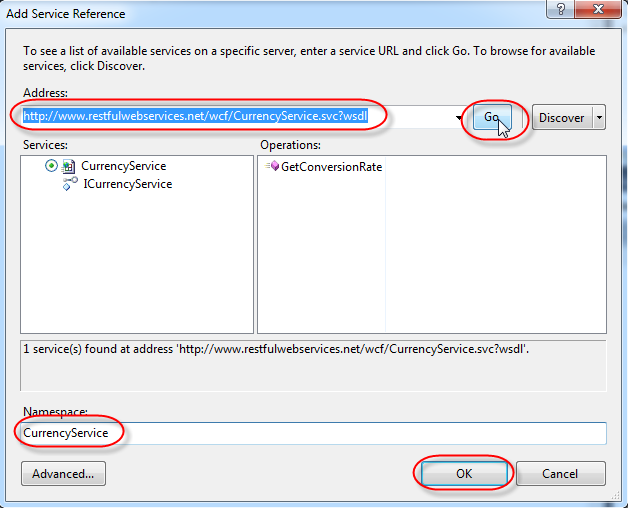
接下来,我们会添加服务参考。右键点击解决方案中的参考节点,选择“添加服务参考”。在地址字段中输入我们的服务网址 http://www.restfulwebservices.net/wcf/CurrencyService.svc?wsdl,然后点击“Go”。在命名空间字段中输入“CurrencyService”。点击确定以生成代理。
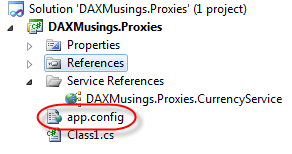
除了 Visual Studio 生成的代理类外,它还会把所有 Web 服务绑定和信息都放在你项目的 app.config 文件里。你可以在解决方案资源管理器中双击app.config打开它。
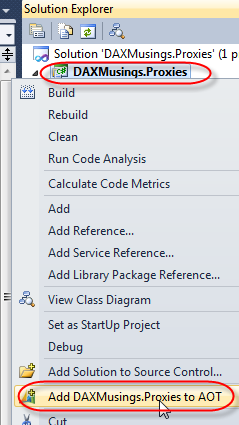
现在,当应用程序加载配置文件时,它会查找应用程序的可执行文件名和末尾的 .config。所以在AX客户端上,Ax32.exe.config会被加载。在服务器端,Ax32Serv.exe.config文件。当然,我们的代码在 app.config 里,但这并没有帮助,永远不会被加载。 让我们看看会发生什么。在项目中,右键点击并选择“将DAXMusings.Proxies 添加到AOT”。
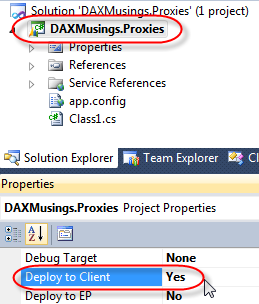
接下来,在项目属性中,将“部署到客户端”属性设置为“是”。
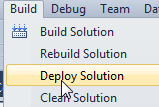
保存项目,点击构建/部署解决方案。这样就能将你的解决方案构建并部署到AX客户端。
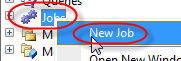
接下来,让我们打开AX客户端。如果客户端还开着,先关掉再重新打开。为了对客户做个快速粗略的测试,我们先创建一个新工作。如果还没打开,可以用 CTRL+SHIFT+W 打开开发者工作区。在AOT中,右键点击并选择新>职位。
在代码中,我们只需创建一个服务客户端实例,然后调用该服务:
static void Job7(Args _args)
{
    DAXMusings.Proxies.CurrencyService.CurrencyServiceClient  service;
    DAXMusings.Proxies.CurrencyService.Currency currency;
    System.Exception ex;

    try
    {
        service = new DAXMusings.Proxies.CurrencyService.CurrencyServiceClient();
        currency = service.GetConversionRate(
            DAXMusings.Proxies.CurrencyService.CurrencyCode::USD,
            DAXMusings.Proxies.CurrencyService.CurrencyCode::EUR);

        info(strFmt('%1', CLRInterop::getAnyTypeForObject(currency.get_Rate())));
    }
    catch(Exception::CLRError)
    {
        ex = CLRInterop::getLastException();
        info(CLRInterop::getAnyTypeForObject(ex.ToString()));
    }
}
现在,如果你尝试运行该服务,会收到错误:“Object ‘CLRObject’ could not be created”。这帮不上什么忙,而且试图抓CLR例外也没用。如果你在 Windows 事件查看器里查看,你只会看到一个警告,说 Dynamics AX 无法加载你的装配配置文件。我不太确定如何在 AX 中获取异常细节,如果有人知道请告诉我。我做的就是在Visual Studio里创建一个静态方法来调试。我收到的错误信息是:
Could not find default endpoint element that references contract 'CurrencyService.ICurrencyService' in the ServiceModel client configuration section. This might be because no configuration file was found for your application, or because no endpoint element matching this contract could be found in the client element.
所以,是的,这才是真正的问题所在。端点在app.config里(输出变成DAXMusings.Proxies.dll.config,查看用户文件夹中的AppData\Local\Microsoft\Dynamics AX\VSAssemblies,那里部署了汇编……查看我关于汇编部署的博客文章),而不是在我们类库(AX32.exe.config)执行主机的配置文件里。 这正是AIFUtil解决的问题!将代码更改为以下内容:
static void Job7(Args _args)
{
    DAXMusings.Proxies.CurrencyService.CurrencyServiceClient  service;
    DAXMusings.Proxies.CurrencyService.Currency currency;
    System.Exception ex;
    System.Type type;

    try
    {
        type = CLRInterop::getType('DAXMusings.Proxies.CurrencyService.CurrencyServiceClient');
        service = AifUtil::createServiceClient(type);
        //service = new DAXMusings.Proxies.CurrencyService.CurrencyServiceClient();
        currency = service.GetConversionRate(
            DAXMusings.Proxies.CurrencyService.CurrencyCode::USD,
            DAXMusings.Proxies.CurrencyService.CurrencyCode::EUR);

        info(strFmt('%1', CLRInterop::getAnyTypeForObject(currency.get_Rate())));
    }
    catch(Exception::CLRError)
    {
        ex = CLRInterop::getLastException();
        info(CLRInterop::getAnyTypeForObject(ex.ToString()));
    }
}
是的,这个方法有效!如果你查看 createServiceClient() 方法,你会发现它实际上加载的是类库的配置文件。不错!问题解决了!!
最后,在推特上有人问我,如何区分开发和制作?起初我没明白这个问题,但现在我明白了。如果你调用的是你自己制作的定制服务,你可能有一个用于开发的服务版本,另一个用于生产的版本。当然,类库只指向一个URL。那么,我们如何在不改变不同环境代码的情况下,让它指向不同环境中的不同地点呢?
更改配置文件?这可以,但类库的配置文件存储在模型存储中,客户端/服务器会下载。除非在AOT中更改,Visual Studio项目重建后客户端/服务器才会从模型商店下载新版本。所以,你可以把所有app.config设置复制粘贴到AX32(serv).exe.config文件里,然后在那里修改。那样你就不需要用aifUtil::createserviceclient了。无论如何,这非常不切实际,尤其是客户端运行的服务!
我们可以直接走 AX 路线,把 URL 存储在参数表里。然后,在运行时,我们用以下代码更改端点地址(用参数替换硬编码的localhost url)。
static void Job7(Args _args)
{
    DAXMusings.Proxies.CurrencyService.CurrencyServiceClient  service;
    DAXMusings.Proxies.CurrencyService.Currency currency;
    System.ServiceModel.Description.ServiceEndpoint endPoint;
    System.Exception ex;
    System.Type type;

    try
    {
        type = CLRInterop::getType('DAXMusings.Proxies.CurrencyService.CurrencyServiceClient');
        service = AifUtil::createServiceClient(type);
        //service = new DAXMusings.Proxies.CurrencyService.CurrencyServiceClient();
        endPoint = service.get_Endpoint();
        endPoint.set_Address(new System.ServiceModel.EndpointAddress("http://localhost/HelloWorld"));

        currency = service.GetConversionRate(
            DAXMusings.Proxies.CurrencyService.CurrencyCode::USD,
            DAXMusings.Proxies.CurrencyService.CurrencyCode::EUR);

        info(strFmt('%1', CLRInterop::getAnyTypeForObject(currency.get_Rate())));
    }
    catch(Exception::CLRError)
    {
        ex = CLRInterop::getLastException();
        info(CLRInterop::getAnyTypeForObject(ex.ToString()));
    }
}
这就是我能说的全部。祝你玩得开心,享受你的SOA架构!而且,像往常一样,这篇攻略已经加入到了AX 2012开发者资源页面的其他攻略中!
原文:AX 2012 中的外部网络服务消费 — CodeCrib
For those of you who have read my post on the Windows Azure App, may recall my shortcut for fixing the missing bindings and other app.config settings. I’ve been meaning to dig into this further and come to a solution, but for the Azure post being constrained by my promised “10-minute app” I stuck with the ugly solution. Recently I was talking with the MSDN team about AIF related articles they are wanting to do, and I brought up this issue. They pointed out they had not seen this issue and asked if I had followed the whitepaper on consuming webservices. Now, there’s not necessarily a lot to it, but in looking over the whitepaper I found one tiny little thing, which makes a world of difference and solves my issue: AIFUtil class! This sparked the idea of doing a follow-up on this, and due to a late night conversation on Twitter related to this I figured I really need to get this on my blog. The issue as I’m about to explain is a .NET fact and not an AX 2012 issue per se. In fact, as you’ll see, AX 2012 has a way to fix the issue.
For this code walkthrough, I will use a free online web service for a currency converter. You can find the WSDL at http://www.restfulwebservices.net/wcf/CurrencyService.svc?wsdl. In case you this link is down by the time you read this, or if you just want to try something else, check XMethods for other free available web services online.
To get started, we’ll create a new Visual Studio 2010 Class Library project, which I will name DAXMusings.Proxies
Next, we add a service reference. Right-click on the References node in your solution and select “Add Service Reference”. In the address field, type our service URL http://www.restfulwebservices.net/wcf/CurrencyService.svc?wsdl and click “Go”. In the Namespace field, type “CurrencyService”. Click OK to generate the proxies.
Besides the proxy classes being generated by Visual Studio, it also puts all the web service bindings and information in the app.config file of your project. You can open it by double clicking on the app.config in the Solution Explorer.
Now, when an application loads a config file, it looks for the application’s executable name and .config at the end. So on the AX client the Ax32.exe.config gets loaded. On the server side, Ax32Serv.exe.config file. Of course, our code is in the app.config, which is not helpful, it will never be loaded. Let’s see what happens. On the project, right-click and select “Add DAXMusings.Proxies to AOT”.
Next, in the properties of the project, set the “Deploy to Client” property to “Yes”.
Save the project and click Build / Deploy Solution. This will build and deploy your solution to the AX client.
Next, let’s open the AX client. If you still had the client open, close it first and re-open. To do a quick and dirty test on the client, let’s create a new job. If not open yet, open a developer workspace using CTRL+SHIFT+W. In the AOT, right-click and select New > Job.
In the code, we’ll just create an instance of the service client, and call the service:
static void Job7(Args _args)
{
    DAXMusings.Proxies.CurrencyService.CurrencyServiceClient  service;
    DAXMusings.Proxies.CurrencyService.Currency currency;
    System.Exception ex;

    try
    {
        service = new DAXMusings.Proxies.CurrencyService.CurrencyServiceClient();
        currency = service.GetConversionRate(
            DAXMusings.Proxies.CurrencyService.CurrencyCode::USD,
            DAXMusings.Proxies.CurrencyService.CurrencyCode::EUR);

        info(strFmt('%1', CLRInterop::getAnyTypeForObject(currency.get_Rate())));
    }
    catch(Exception::CLRError)
    {
        ex = CLRInterop::getLastException();
        info(CLRInterop::getAnyTypeForObject(ex.ToString()));
    }
}
Now, if you try to run this service, you get the error “Object ‘CLRObject’ could not be created”. Not very helpful, and trying to catch a CLR Exception won’t work either. If you look in the Windows Event Viewer, all you’ll find is a warning that Dynamics AX is unable to load your assembly’s config file. I’m unsure how to actually get the exception details in AX, so if anyone knows let me know. What I’ve done to get this, is basically create a static method in Visual Studio that I can debug. The error message I got out of that is:
Could not find default endpoint element that references contract 'CurrencyService.ICurrencyService' in the ServiceModel client configuration section. This might be because no configuration file was found for your application, or because no endpoint element matching this contract could be found in the client element.
So yes, the is the actual issue at play. The endpoint is in the app.config (in the output it becomes DAXMusings.Proxies.dll.config, check your user folder under AppData\Local\Microsoft\Dynamics AX\VSAssemblies where assemblies are deployed… check my blog post on Assembly deployment) and not in the config file of the executing host for our class library (AX32.exe.config). And that is exactly what AIFUtil fixes! Change the code to the following:
static void Job7(Args _args)
{
    DAXMusings.Proxies.CurrencyService.CurrencyServiceClient  service;
    DAXMusings.Proxies.CurrencyService.Currency currency;
    System.Exception ex;
    System.Type type;

    try
    {
        type = CLRInterop::getType('DAXMusings.Proxies.CurrencyService.CurrencyServiceClient');
        service = AifUtil::createServiceClient(type);
        //service = new DAXMusings.Proxies.CurrencyService.CurrencyServiceClient();
        currency = service.GetConversionRate(
            DAXMusings.Proxies.CurrencyService.CurrencyCode::USD,
            DAXMusings.Proxies.CurrencyService.CurrencyCode::EUR);

        info(strFmt('%1', CLRInterop::getAnyTypeForObject(currency.get_Rate())));
    }
    catch(Exception::CLRError)
    {
        ex = CLRInterop::getLastException();
        info(CLRInterop::getAnyTypeForObject(ex.ToString()));
    }
}
And yes, that one works! If you look into the createServiceClient() method, you’ll notice it actually loads the class library’s config file. Nice! Problem solved!!
So, as a final note, on Twitter the question was asked, how do I differentiate between development and production? First I didn’t get the question, but I get it now. If you are calling a custom service you’ve made, you may have a version of the service for development, and a separate version for production. Of course, the class library points to one and only one URL. So how do we make it point to different places in different environments without changing the code between the environments?
Change the config file? This would work, but the class library’s config file is stored in the model store and downloaded by the client/server. It can’t be changed unless it’s changed in the AOT, the Visual Studio project is rebuilt, at which point the client/server will download the new version from the model store. So, you could copy/paste all the app.config settings into the AX32(serv).exe.config file and change it there. Then you won’t need to use the aifUtil::createserviceclient. In any case, this is very impractical, especially for services running on the client side!
We can just go the AX route, and store the URL in a parameter table somewhere. Then, at runtime, we change the end point address with the following code (replace the hardcoded the localhost url with a parameter).
static void Job7(Args _args)
{
    DAXMusings.Proxies.CurrencyService.CurrencyServiceClient  service;
    DAXMusings.Proxies.CurrencyService.Currency currency;
    System.ServiceModel.Description.ServiceEndpoint endPoint;
    System.Exception ex;
    System.Type type;

    try
    {
        type = CLRInterop::getType('DAXMusings.Proxies.CurrencyService.CurrencyServiceClient');
        service = AifUtil::createServiceClient(type);
        //service = new DAXMusings.Proxies.CurrencyService.CurrencyServiceClient();
        endPoint = service.get_Endpoint();
        endPoint.set_Address(new System.ServiceModel.EndpointAddress("http://localhost/HelloWorld"));

        currency = service.GetConversionRate(
            DAXMusings.Proxies.CurrencyService.CurrencyCode::USD,
            DAXMusings.Proxies.CurrencyService.CurrencyCode::EUR);

        info(strFmt('%1', CLRInterop::getAnyTypeForObject(currency.get_Rate())));
    }
    catch(Exception::CLRError)
    {
        ex = CLRInterop::getLastException();
        info(CLRInterop::getAnyTypeForObject(ex.ToString()));
    }
}
That’s all I got. Have fun with your SOA architecture! And as usual, this walkthrough was added to the other ones on the AX 2012 Developer Resources page!
转载请注明:ww12345678 的部落格 | AX Helper » 在AX 2012中调用第三方Web服务/Consuming External Webservices in AX 2012